
Saturday, February 2, 2026
QR Code on Flyer: Design Tips, Use Cases & Best Practices
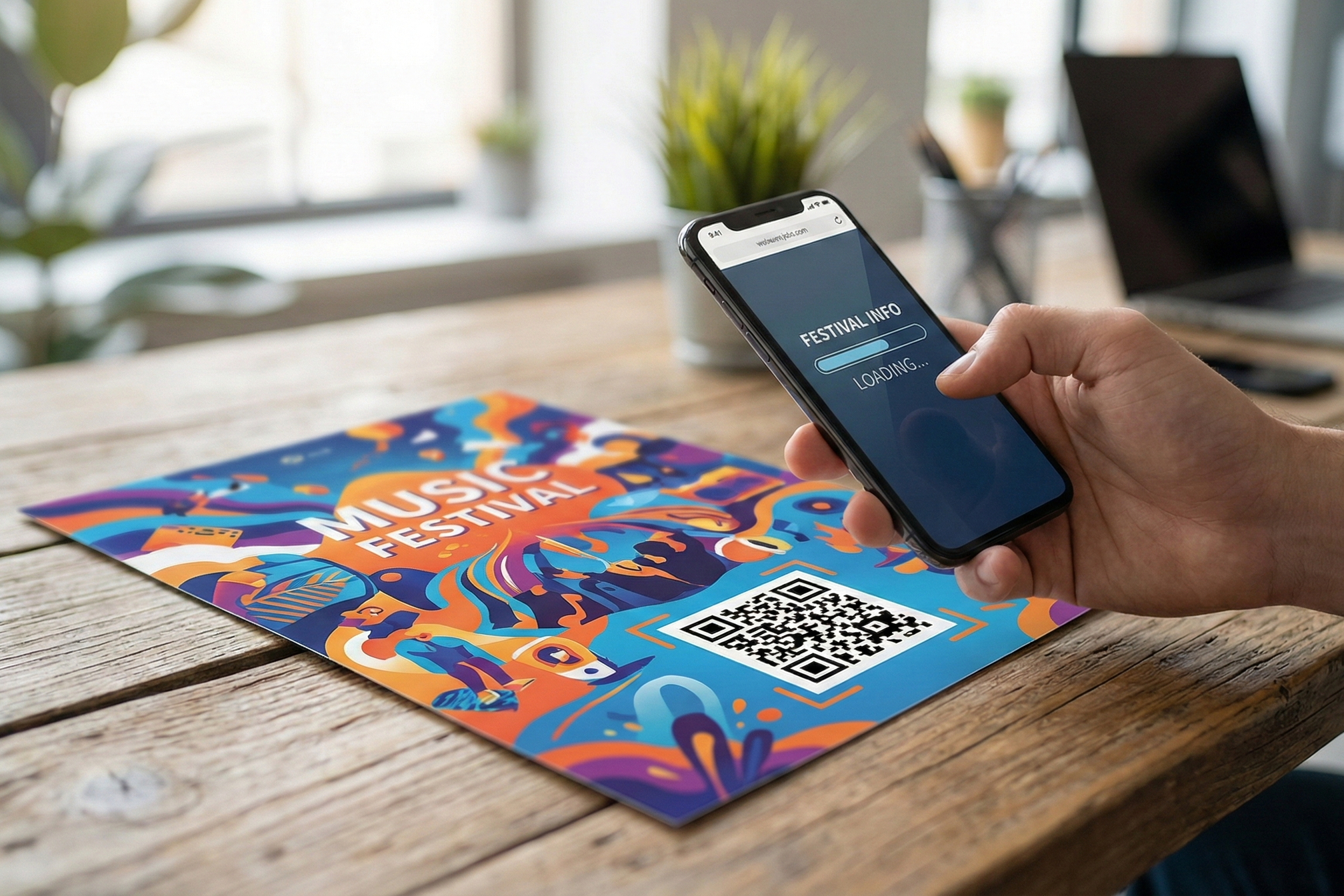
Learn how to add a QR code to your flyer. Design tips, size guide, placement best practices, and free templates. Create your QR code flyer in 60 seconds.
Why Add a QR Code to Your Flyer?
Printed flyers are effective for local reach—but they're a dead end. No way to track who took one, no clickable links, no digital follow-through. A QR code flyer bridges that gap. One scan takes readers from paper to any digital destination: your website, a payment page, event registration, app download, menu, or video.
The benefits are immediate:
Measurable. Track exactly how many people scan your flyer and when. No more guessing if your print campaign worked.
Actionable. Convert a physical impression into a digital action, a signup, purchase, RSVP, or donation. Your flyer now closes the sale instead of just introducing it.
Updatable. With a dynamic QR code, change the destination URL without reprinting. Event venue moved? Update the link. Promo expired? Redirect to a new offer.
A QR code transforms your flyer from a passive handout into a trackable, interactive marketing tool. The setup takes minutes, and the ROI is measurable.
Quick navigation: Jump to how-to →
Which Type of QR Code Should You Put on a Flyer?
Not all QR codes are the same. The type you choose depends on what you want people to do after they scan. Here's the breakdown:
QR Code Type: URL | Best For: Most flyers—websites, landing pages, event registration | Example Destination: yourbusiness.com/promo
QR Code Type: vCard | Best For: Business cards and networking flyers | Example Destination: Contact info auto-saves to phone
QR Code Type: PDF | Best For: Menus, catalogs, specification sheets | Example Destination: Download a PDF brochure
QR Code Type: App Store | Best For: App promotion flyers | Example Destination: Link to iOS App Store or Google Play
QR Code Type: Payment | Best For: Donation, tipping, small business payment collection | Example Destination: Venmo, Cash App, PayPal.me
QR Code Type: Wi-Fi | Best For: Venue and event flyers | Example Destination: Auto-connect guests to network
QR Code Type: Social Media | Best For: Brand awareness flyers | Example Destination: Instagram, TikTok, or Facebook profile
For 80% of flyer scenarios, a URL QR code is your go-to choice. It's versatile, works with any destination, and is the easiest to customize with your brand colors.
One bonus: a dynamic URL QR code lets you change the destination link anytime after you've printed the flyers. Miss a typo? Change a landing page? Update an event date? No reprinting needed. (More on dynamic vs. static codes later.)
Use the table above as your decision framework: What action do you want people to take? Match that to the QR code type, and you're set.
How to Add a QR Code to a Flyer (5 Easy Steps)
Adding a QR code to your flyer is straightforward. Follow these five steps, and you'll have a scannable, custom-branded code ready to print.
Step 1: Decide Where Your QR Code Should Send People
Before you create the QR code, know the destination. Examples:
- Your website or a specific landing page
- A payment page (Venmo, Cash App, PayPal)
- Event registration or ticketing form
- A PDF document, menu, or map
- Your social media profile
Write down the full URL or link you want to use. You'll paste this into the QR code generator.
Step 2: Generate Your QR Code
Head to a free QR code generator—UseQRKit works great here.
- Select your QR code type (URL for most flyers)
- Paste your destination link
- For any flyer you're printing in quantity, choose Dynamic. This lets you edit the URL after printing if anything changes, and you'll get scan tracking for free.
Your basic QR code is now ready. You can scan it on your phone to verify it works.
Step 3: Customize the Design
This is where you make it match your flyer.
- Colors: Change the QR code to match your brand colors. Just make sure there's strong contrast between the code and the background (dark on light works best).
- Logo or icon: Add your business logo to the center of the QR code. This makes it feel branded, not generic.
- Frame with call-to-action text: Add a frame around the edges with text like "Scan Me," "Learn More," "Pay Here," or "RSVP Now." This tells people what to expect when they scan.
Download your QR code as SVG (for print—scalable to any size) or PNG (for digital-only flyers).
Using Canva? You can add a QR code directly in the Canva editor. Go to Apps → QR Code, paste your URL, and drag it onto your flyer design. For more control over design and tracking, generate your QR code first with UseQRKit, download it, then upload to Canva as an image. This gives you design customization plus scan analytics.
Step 4: Place the QR Code on Your Flyer
Position matters. Follow these placement rules:
- Lower-right quadrant is ideal. Readers' eyes naturally track left-to-right, top-to-bottom, landing in the bottom-right area last. Place your QR code there.
- Minimum size: 1" x 1" (2.5 cm) for handheld flyers; 1.5" x 1.5" (3.8 cm) for posted flyers.
- Keep it away from fold lines and edges. Leave at least 0.25" margin from the edge to prevent trimming damage.
- Avoid busy backgrounds or photos. Place your QR code on white space or a solid color. Patterns and images reduce scannability.
- Include a text instruction: "Scan with your phone camera" or "Tap to learn more." This reduces friction.
Step 5: Test Before Printing
Never print 500 copies without testing first.
- Scan the QR code on at least 3 devices (iPhone, Android, and an older phone if possible)
- Test in different lighting—indoors, outdoors, bright, dim
- Print a test copy. Scanning a screen version is not the same as scanning printed paper. Print one test flyer and verify it scans correctly.
- If you're using a dynamic QR code, verify the redirect works (i.e., clicking through lands on the right page)
Once the test passes, print with confidence.
QR Code Flyer Design: Size, Placement & Scannability Tips
The best QR code is one that people can actually scan. Here's the technical guidance.
Size Guide by Flyer Format
Use this table to choose the right QR code size for your flyer:
Flyer Size: A4 / Letter (8.5×11") | Minimum QR Code Size: 1" × 1" (2.5 cm) | Recommended QR Code Size: 1.5" × 1.5" (3.8 cm)
Flyer Size: Half-page (5.5×8.5") | Minimum QR Code Size: 0.8" × 0.8" (2 cm) | Recommended QR Code Size: 1.2" × 1.2" (3 cm)
Flyer Size: A5 (5.8×8.3") | Minimum QR Code Size: 0.8" × 0.8" (2 cm) | Recommended QR Code Size: 1.2" × 1.2" (3 cm)
Flyer Size: Postcard (4×6") | Minimum QR Code Size: 0.75" × 0.75" (1.9 cm) | Recommended QR Code Size: 1" × 1" (2.5 cm)
The larger the flyer, the larger the QR code should be. A tiny code on a large poster looks lost and discourages scanning.
Placement Best Practices
- Lower-right quadrant is the most natural placement. Readers scan left-to-right, top-to-bottom, and land there last.
- Avoid fold areas. For tri-fold flyers, never place a QR code near a fold—creasing damages the code.
- Leave margins. Keep at least 0.25" from edges. Trimming can slice into the code.
- Choose white space. Never place a QR code over busy photos or detailed backgrounds. Scannability drops dramatically.
Color & Contrast Rules
- Dark foreground on light background works best. Black-on-white is the gold standard.
- Maintain at least 40% contrast between the QR modules and background.
- Avoid inverting colors (light QR on dark background). Older smartphone cameras struggle with this.
- Custom colors are fine, but test them after customizing. Don't assume a trendy color combo will scan.
Print Specifications
- Export at minimum 300 DPI for offset or digital printing. Anything less and the QR code looks blurry when printed.
- Use SVG format for scalable, resolution-independent output. You can resize it endlessly without losing quality.
- CMYK color mode for professional printing; RGB for digital-only flyers.
- Matte finish paper scans better than glossy or reflective finishes. If your flyer is glossy, ensure the QR code area is matte.
These specs ensure your printed QR code scans reliably from 6 inches away—the distance most people hold their phone.
7 Smart Ways to Use a QR Code on a Flyer
QR codes unlock new possibilities for different flyer types. Here are the most effective use cases.
1. Event Flyers
Link to event registration, ticketing, or an event schedule. Use a dynamic QR code—if your venue changes or time shifts, update the link without reprinting.
Example: Concert flyer → QR code links to Eventbrite registration + full lineup schedule.
2. Donation & Fundraising Flyers
Direct donors to your GoFundMe, nonprofit donation form, or PayPal.me link. Especially powerful for churches, schools, NGOs, and community organizations. A QR code removes friction, no typing a website URL by hand.
Example: School fundraiser flyer → QR code links to donation page with real-time goal tracker.
3. Business Marketing Flyers
Link to a product page, special offer landing page, or lead capture form. Track which physical distribution locations generate the most scans.
Example: Restaurant grand-opening flyer → QR code links to a "20% off coupon" landing page with a unique UTM parameter so you know which flyer drove the visit.
4. Real Estate Flyers
Link to virtual property tours, listing details, or a vCard QR code with agent contact info. This is huge in real estate, buyers can take a virtual tour right from the flyer.
Example: Open house flyer → QR code links to a Matterport 3D tour + agent's phone number.
For a deep dive, see our guide on QR codes for real estate.
5. Menu & Restaurant Flyers
Link to a digital menu, online ordering page, or reservation system. Ideal for takeout and delivery flyers.
Example: Takeout menu flyer → QR code links to your online ordering platform, bypass paper menus entirely.
6. Job Recruitment Flyers
Link to your job listing, application form, or careers page. Track scan rates by location to optimize where you post flyers.
Example: "We're Hiring" poster at a university → QR code links directly to the application portal.
7. Community & Government Flyers
Link to public information, surveys, feedback forms, or emergency resources.
Example: City council meeting notice → QR code links to the meeting agenda + Zoom link for remote attendees.
Each of these use cases turns a one-way flyer into a two-way engagement tool. The QR code is your bridge from paper to action.
How to Put a Cash App or Venmo QR Code on a Flyer
Payment QR codes on flyers are gaining traction—and for good reason. Let donors, customers, or event attendees pay you instantly without fumbling for cash or asking for your account info.
Cash App QR Code on Flyers (4 Steps)
- Open Cash App on your phone → Tap your profile icon (top right).
- Your personal Cash App QR code appears. You can take a screenshot, or tap "Copy $Cashtag Link" to get your direct link (format: cash.app/$yourtag).
- For a branded, trackable version: Go to UseQRKit → Paste your cash.app/$yourtag link → Customize with your flyer's colors and add frame text like "Pay Here" or "Tips Appreciated."
- Download as SVG and place on your flyer at minimum 1" × 1".
Why use UseQRKit instead of the native screenshot? The UseQRKit version lets you customize colors to match your flyer, track how many people scanned, and swap the payment link later if you change platforms. The native Cash App code is static and gives you zero data.
Use cases: Tipping jars at events, small business payment collection, street performers, farmers markets, food truck menus, donation collection.
Venmo QR Code on Flyers (4 Steps)
- Open Venmo → Tap the "Scan" icon at the top of the home screen.
- Your personal Venmo QR code displays. Screenshot it, or copy your profile link (venmo.com/u/yourusername).
- For design customization: Go to UseQRKit → Paste your venmo.com/u/yourusername link → Add your brand colors and a "Venmo Me" frame.
- Download and add to your flyer design at minimum 1" × 1".
Use cases: Group event payments (split the dinner bill via flyer), donation collection, freelancer service payments, nonprofit fundraising.
PayPal.me, Zelle & Other Payment Platforms
- PayPal.me links: Work great as URL QR codes. You can even pre-fill an amount: paypal.me/yourname/25 pre-sets a $25 request.
- Zelle: Doesn't have native QR codes. Create a URL QR code linking to a simple instructions page with your Zelle email or phone number.
- Apple Pay / Google Pay: Not currently QR-code-native, but you can link to a payment page that supports both (like Stripe or Square).
Pro tip: If you're collecting payments at an event, use a UseQRKit dynamic QR code instead of the app's native code. Why? Dynamic codes let you track scan counts, and you can switch the payment destination later without reprinting.
How to Track QR Code Scans on Your Flyers
Flyer marketing is traditionally unmeasurable—"spray and pray" with no data. QR codes change that. You can now measure the ROI of your print campaign with precision.
What You Can Track
If you use a dynamic QR code from UseQRKit, you'll see:
- Total scans and unique scans — How many times was the code scanned, and how many different people scanned it?
- Scan location — Which cities or countries scanned most?
- Device type — iOS or Android? This helps you understand your audience.
- Time of day / day of week patterns — When do people scan? (Evenings? Weekends? This tells you when your flyer reaches people.)
- Referral source — If using UTM parameters, see which traffic source drove the scan.
How to Set Up Tracking
Using UseQRKit, tracking is automatic for dynamic QR codes. No extra setup.
For deeper analytics integration:
- Append UTM parameters to your destination URL before generating the QR code.
- Example: yourdomain.com/promo?utm_source=flyer&utm_medium=print&utm_campaign=spring2026
- Generate the QR code with that full URL.
- View scan data in your UseQRKit dashboard AND in Google Analytics.
A/B Testing with QR Codes
This is unique to QR codes—you can't A/B test a printed phone number or website URL.
Here's how:
- Print two versions of your flyer with different QR codes (each linking to a different UTM-tagged URL).
- Distribute version A in one location (coffee shop, trade show) and version B in another.
- Compare scan rates and destination page conversions in your dashboard.
Example: Version A's headline is "Save 20% on Memberships" and version B's is "Join Our VIP Program." Which flyer generates more scans? The data tells you which message resonates.
Dynamic vs Static QR Codes: Which Is Better for Flyers?
This is the critical decision for print marketing. Here's the comparison:
Feature: Edit destination URL after printing | Static QR Code: ❌ No — must reprint | Dynamic QR Code: ✅ Yes — change anytime
Feature: Scan tracking & analytics | Static QR Code: ❌ No | Dynamic QR Code: ✅ Yes — counts, location, device
Feature: Shorter URL encoding | Static QR Code: ❌ Long URLs = denser, harder-to-scan code | Dynamic QR Code: ✅ Short redirect URL = simpler code
Feature: A/B testing campaigns | Static QR Code: ❌ Not possible | Dynamic QR Code: ✅ Change destination mid-campaign
Feature: Cost | Static QR Code: Free (any generator) | Dynamic QR Code: Free tier available (UseQRKit)
Feature: Best for | Static QR Code: One-time/personal use | Dynamic QR Code: Business, marketing, events
The bottom line: For any flyer printed in quantity (50+ copies), use a dynamic QR code. The ability to fix a broken link, update an expired promotion, or redirect to a new page after printing saves time, money, and frustration. Plus, you get free scan analytics.
Learn more about dynamic QR codes and how they work. And if you want a detailed comparison, check out our guide on static vs dynamic QR codes.
Frequently Asked Questions About QR Codes on Flyers
FAQ #1: What is a QR code flyer?
A QR code flyer is any printed flyer that includes a scannable QR code linking to a digital destination—a website, payment page, event registration, menu, video, or app download. Adding a QR code transforms a passive handout into a trackable, interactive marketing tool that bridges offline print and online action.
FAQ #2: How do I add a QR code to a flyer?
Generate a QR code with a free tool like UseQRKit, download it as SVG or PNG, and place it on your flyer design in Canva, Adobe Illustrator, or Microsoft Word. Position it in the lower-right area at minimum 1" × 1" with a clear instruction like "Scan Me." See our step-by-step guide in the section above for full details.
FAQ #3: Can I make a QR code flyer template for free?
Yes. Generate a free QR code, then add it to a free Canva flyer template. For full design control, download the QR as SVG and import it into any design tool. No account required, no email needed.
FAQ #4: Where should I put the QR code on my flyer?
The lower-right quadrant is most natural—readers' eyes follow an F-pattern (left-to-right, top-to-bottom) and land there last. Keep the QR code away from fold lines and edges, with at least 0.25" margin to prevent trimming damage.
FAQ #5: What should a flyer with a QR code link to?
Common destinations: your website or landing page, event registration form, payment page (Venmo, Cash App, PayPal.me), digital menu, PDF brochure, or social media profile. Choose based on the flyer's goal and the action you want from the reader.
FAQ #6: How do I create a QR code for an event flyer?
Create a dynamic URL QR code with UseQRKit that links to your event registration page or ticketing platform (Eventbrite, Luma, etc.). A dynamic code lets you update event details—like a venue change—without reprinting. Add a frame with "RSVP Now" or "Get Tickets" to prompt action.
FAQ #7: How big should a QR code be on a flyer?
Minimum 1" × 1" (2.5 cm) for handheld flyers. For posted flyers or larger formats, use 1.5"+ for reliable scanning from a distance. Always test a printed copy before your full print run.
FAQ #8: How do I put my Cash App QR code on a flyer?
Screenshot your Cash App QR code from the app, or create a branded version with UseQRKit using your cash.app/$cashtag link. The UseQRKit version gives you scan tracking and color customization that the native code doesn't offer—plus you can change where it directs payment if needed.
FAQ #9: Should I use a dynamic or static QR code on a flyer?
For any flyer printed in quantity, use dynamic. You can update the link if something changes, and you get free scan data. Static codes are fine for personal, one-off prints.
FAQ #10: Can I track how many people scan my flyer's QR code?
Yes—if you use a dynamic QR code from UseQRKit, scan tracking is built in. You'll see total scans, unique scans, device types, locations, and time-of-day patterns in your dashboard. This data is gold for measuring flyer campaign ROI.
Ready to Create Your QR Code Flyer?
Stop guessing if your flyers work. Turn them into measurable, interactive experiences. Generate a free QR code now—no account required, no email, no friction. Customize it to match your brand, download as SVG for print, and you're ready to go.
Your first flyer campaign starts in 60 seconds. Try it.


